Template 2: Two Column Layout with Sidebar in DFM2HTML
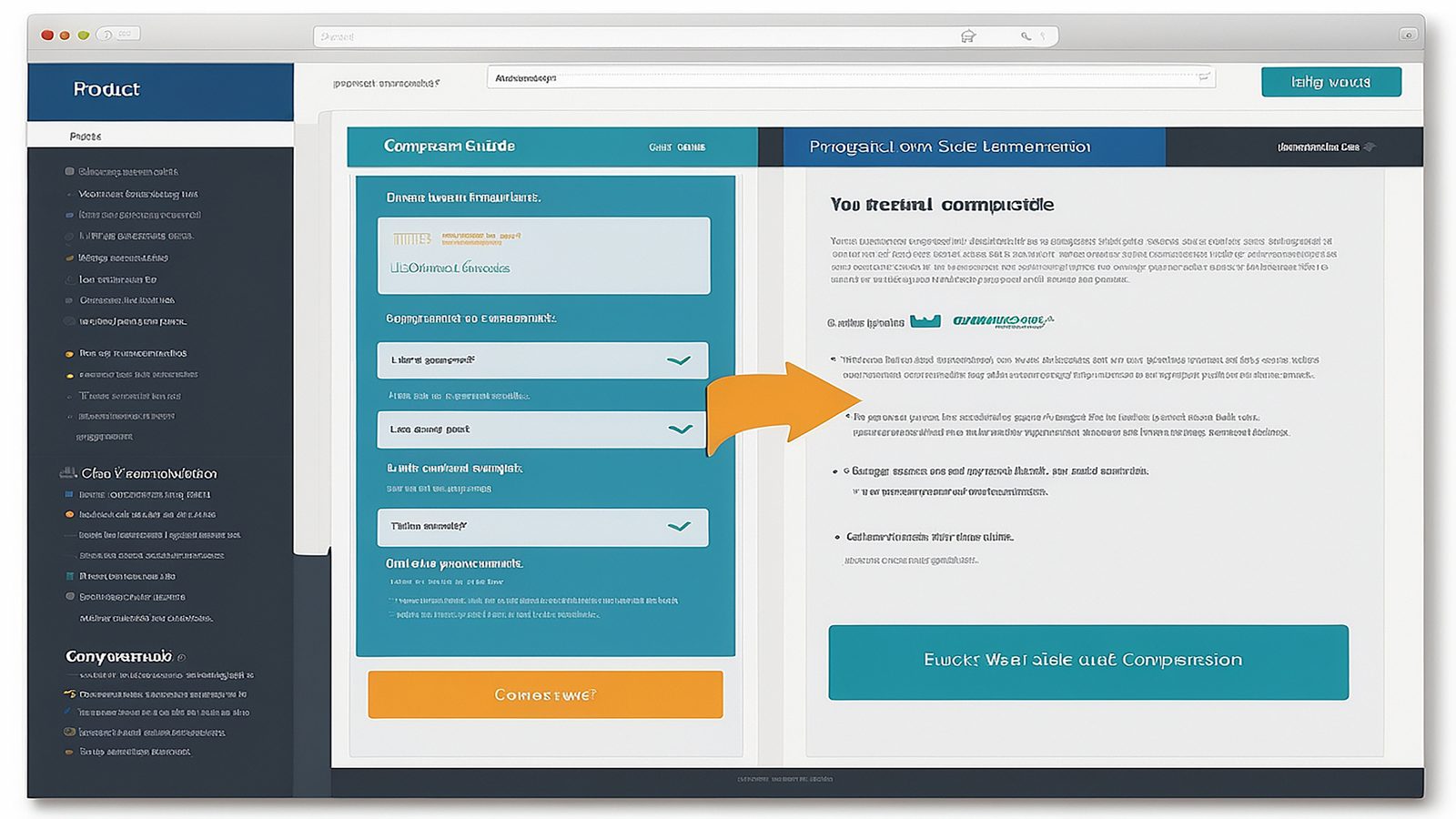
Template 2 divides the page into two columns: a main content area and a sidebar. That division does work that a single column layout cannot do on its own. It gives you a persistent, visible navigation list without consuming space in the main reading area, and it gives visitors a way to scan the site structure while they read. For documentation sites, service directories, and any site where section navigation matters, Template 2 is the practical workhorse of the DFM2HTML library.
Template Concept
The core idea is separation of roles. The main column holds the primary content: the article text, the product description, the service detail, or whatever the page is actually about. The sidebar holds secondary content: navigation links, quick reference items, contact snippets, or related page pointers. Neither column competes with the other when the separation is done correctly.
Template 2 in DFM2HTML positions the sidebar on the left by default, following the pattern that works best when the sidebar carries navigation. Left-side navigation aligns with how most readers enter a page: eye movement starts at the top left and works right, so navigation choices encountered early in the scan path get noticed and used. A right-side sidebar works better for supplementary content that is optional rather than navigational.
The template is designed for sites in the ten to thirty page range where a flat horizontal nav bar would become unwieldy, but where the content does not require the persistent lock of a frame-based layout. It handles the middle ground between the simplicity of Template 1 and the structural commitment of the frame templates.
Layout Anatomy
The layout has four zones. The header spans the full width at the top. Below it, the page splits into a sidebar column and a main content column that run side by side down the page. The footer spans the full width at the bottom, below both columns.
In the default Template 2 output, the sidebar is narrower than the main column, typically occupying roughly one quarter of the total page width. The main column takes the remaining three quarters. These proportions are set in the template's structural table or CSS layout, and you can adjust them through the editor's column width controls if your content demands a different balance.
The sidebar in Template 2 is its own editing region. You click into it and add content independently of the main column. Navigation links go in as a list. If you want to add a small image, a phone number block, or a short text callout, those go in the sidebar as separate content blocks. The template handles the visual alignment so both columns reach a consistent baseline at the bottom of the page.
The main content area behaves exactly like the content region in Template 1. You have full vertical space for headings, paragraphs, images, tables, and any other content type the editor supports. The sidebar does not interrupt or overlap the main column at any point in the standard layout.
Where Template 2 Works Well
Service directories and listings are the strongest use case for Template 2. A site that lists consulting services, product categories, or support topics benefits from a sidebar navigation that makes the full list of sections visible at all times. The reader can see where they are in the site, where they have been, and where they might go next, without leaving the current page or scrolling back to the top.
Documentation sites with multiple reference sections are another natural fit. When a site has a getting started section, a configuration reference, a troubleshooting guide, and an API summary, the sidebar becomes a persistent table of contents. Readers jump between sections frequently in documentation, and having those links always visible reduces friction.
Business sites with a defined service or product line also work well here. A company with five to ten distinct services can list all of them in the sidebar while the main column shows the detail for whichever service the reader navigated to. The sidebar provides context for the whole offering while the main column delivers the specific information.
Portfolio sites can use Template 2 with the sidebar carrying project categories or client type filters. This works particularly well when the portfolio is organized by type rather than by date.
Navigation Pattern
Template 2's primary navigation lives in the sidebar, supplemented by a secondary horizontal nav in the header for top-level site sections. The sidebar nav list handles section-level or page-level navigation within a site area, while the header nav handles site-wide navigation between major areas.
In DFM2HTML, you populate the sidebar nav by editing the link list in the sidebar region. Each list item is a link to another page on the site. You can add heading labels above groups of links to create a structured two-tier nav list without building a dropdown system.
Active state indication, showing which sidebar link corresponds to the current page, is handled by adding a distinct style to the current page's link item. The editor lets you apply a class or inline style to individual list items. A simple bold weight or a background color on the active item is enough to orient the reader.
For sites where the sidebar nav needs to show sub-pages under a parent section, you can indent a second list inside the parent list item. Template 2 supports nested lists in the sidebar without structural issues, though depth beyond two levels tends to make the sidebar feel cluttered.
Responsive Concerns
Two column layouts require a reflow decision on small screens. At desktop width, the sidebar and main column sit side by side. At mobile width, that arrangement stops working because neither column is wide enough to be readable in half the viewport.
The standard approach is to stack the sidebar below the main content on small screens, or above it if the sidebar carries navigation that the reader needs before engaging with the main content. Stacking below is the safer choice for content-first pages. Stacking above is appropriate when the sidebar is truly navigational and readers arriving on a phone need the nav list to find their way around the site.
Template 2's output uses a table-based two column structure in the default DFM2HTML export. On very small screens, table columns do not automatically restack the way CSS flexbox or grid columns do. If mobile display is a priority for your project, review the template's CSS output and add a media query that switches the column display to block at your chosen breakpoint. The editor's custom CSS panel is the right place to add this.
Image widths in the main column at mobile size follow the same rules as Template 1: they scale proportionally, and images containing text may become too small to read at narrow widths. The sidebar typically contains few or no images, so the main concern is the link list line length and padding at small sizes.
Related Templates
For simpler sites that do not need a sidebar, Template 1 provides a clean single column starting point with no column management required. It is the right step back when Template 2 introduces more structure than the content actually needs.
For compact brochure pages where a full two-column layout is too broad, Template 5 provides a focused content zone that keeps the page intentionally compact. It works well alongside Template 2 when your site has a mix of detailed section pages and brief promotional pages.
For sites that need the sidebar to remain visible and locked in place as the reader scrolls, Template 8 offers a multi-section structure with more defined zones that can support persistent navigation elements within a more complex page architecture.